


Noah System supports login using Entra ID user management (formerly Azure Active Directory). This page describes how to set up Entra ID as Application Roles and how to configure the Noah Console.
For application roles the user credentials must be handled by creating an Enterprise Application and giving users roles in the Enterprise Application. The user roles will control the user level in Noah.
This page describes how to:
- Set up Entra ID
- Configure Entra ID in the Noah Console
Entra ID Setup for Application Roles
1. Create users in the Tenant Entra ID that are able to access Noah.
2. In Entra Management select Enterprise Application and create a new Application.
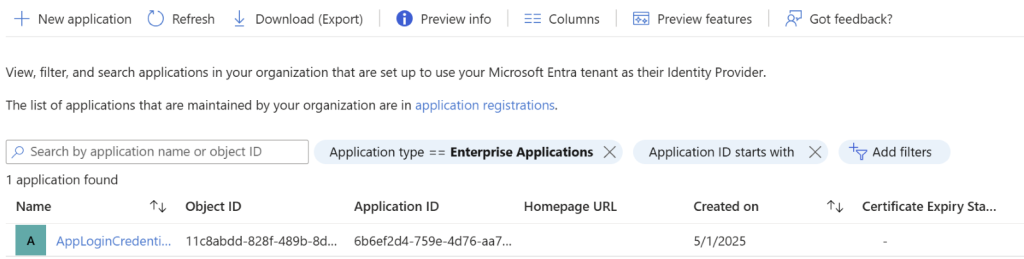
3. Back in Entra Management, select App Registrations. Under All Applications you will find the newly created application.
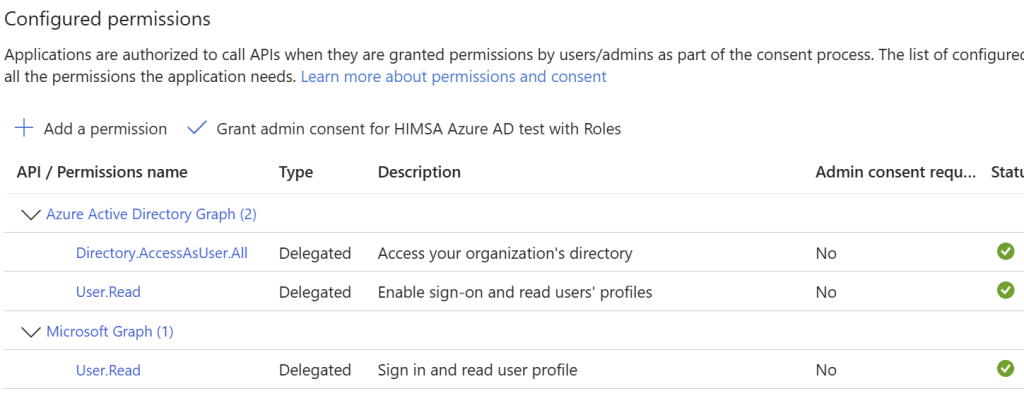
4. Select API permissions and add the User.Read permission for Microsoft Graph:
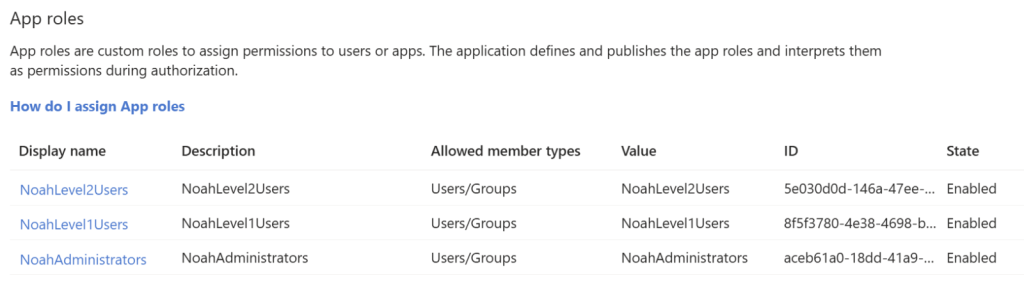
5. Select App Roles in the left menu and create app roles for Noah administrator, Level 1 and Level 2 users:
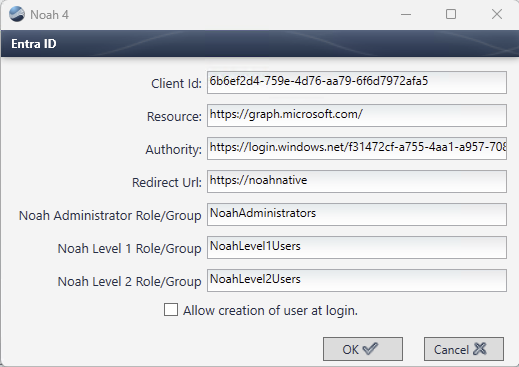
Configuring Entra ID in the Noah Console
- ClientId: Entra application ID
- Resource: https://graph.microsoft.com/
- Authority: https://login.windows.net/{Tenant ID}
- RedirectUrl: https://noahnative
- Set the names for the app roles:
- NoahAdministrators
- NoahLevel1Users
- NoahLevel2Users
 HIMSA
HIMSA