


The purpose of this document is to complete the setup for the Noah 4 Activity Log to save a SQL database with Noah 4.117.0 Windows Authentication.
NOTE: The directions below are to be completed after first following the directions listed on the page ‘Setting Up the Noah 4 Activity Log to Save to a SQL Database‘.
1. Open SQL Server Management Studio (SSMS).
2. In SSMS open the Security Tab on the left. Then expand logins.
3. Under Logins select NT Authority\Network Service.
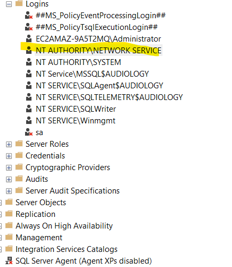
4. Right click and select Properties on NT Authority\Network Service
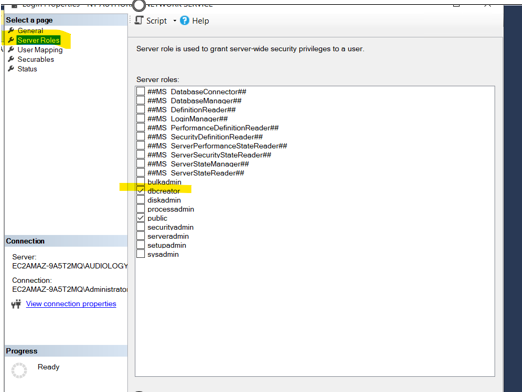
5. Select Server Roles.
6. Check the dbcreator check box. You are giving NT Authority\Network Service rights to create the activity log database in SQL Server.
7. IMPORTANT: Return to the previous page (Setting Up the Noah 4 Activity Log to Save to a SQL Database) and complete the steps under ‘B) Windows Authentication‘. Once these have been completed you can return to this page to finish your setup.
8. Open Noah System.
9. Create a test patient.
10. Go into Noah Console>Activity log
11. Verify your creation of the new patient activity appears in the log file.
12. You can check in the Noah4ActivityLog database’s Activity Log table too.
 HIMSA
HIMSA