


Note: HIMSA recommends downloading your Noah license file using Google Chrome or Mozilla Firefox, as these browsers typically do not block the download.
If you use Microsoft Edge, follow the steps below to ensure the license file is downloaded correctly.
When downloading your Noah license file using Microsoft Edge, the browser may block the file or prevent it from being opened directly. In these cases, you can keep the file using the More actions (three dots) menu.
Steps to Keep the Noah license file in Microsoft Edge
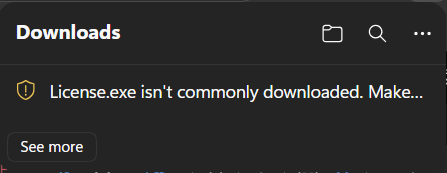
- Locate the Download Notification
After attempting to download the file, Edge will display a notification indicating that the file has been blocked or requires confirmation.
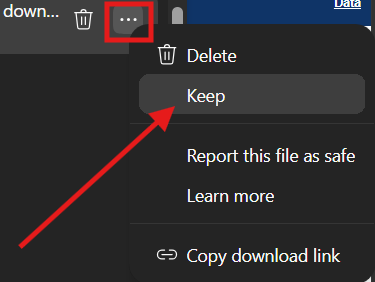
- Click the Three Dots (More Actions)
Next to the file name, select the three dots (…) to open additional options. From the menu, click Keep.
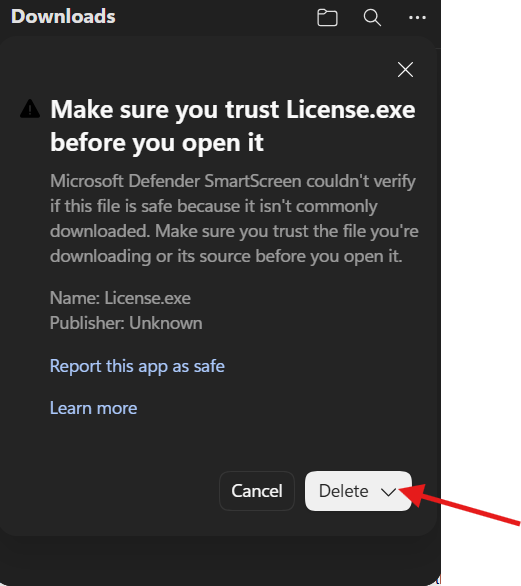
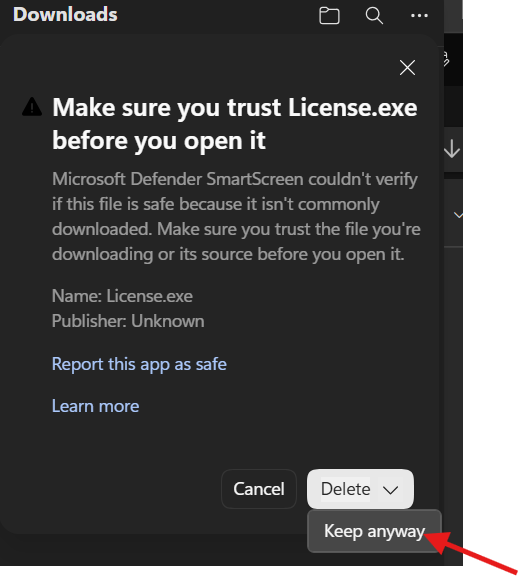
- Select the drop-down menu next to the delete button and click the “Keep Anyway” option
A confirmation prompt will appear.
Select Keep anyway to proceed with the download.
- Access the File
Once confirmed, the file will remain in your Downloads folder and can be opened normally.
Click here to continue to the Noah License registration site
 HIMSA
HIMSA