


Support Specialist
Most Noah users are familiar with the Add/Edit Patient dialog, which allows you to add and edit demographic information for your patients.
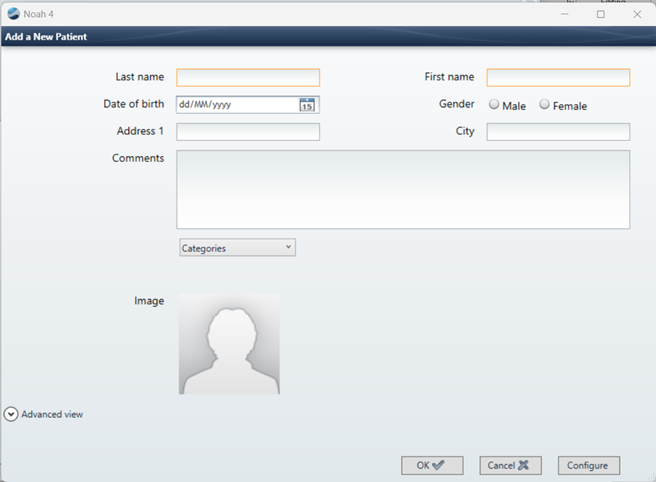
However, did you know that you can tailor this dialog to meet the needs of your hearing care business?
Using the Noah setup, you can determine which types of patient demographic data can be entered in your Noah patient database, which demographic data will be required and how it will be displayed in the Add/Edit Patient window.
Choosing Patient Demographic Data
You can choose which types of patient demographic data that you want to be stored in your database using the Patient Data Setup dialog.

In the Fields Setup tab, simply check the Active checkbox next to each type of demographic data you want to include in your Noah Database.

Each active demographic field will automatically be added to the Add/Edit Patient dialogs. And if you check the Required box next to a demographic data type, your Noah users will be required to fill in this field when adding a new patient.
Would you like to add a type of demographic data that is not contained in the Field list?
The list also includes two definable fields, Other 1 and Other 2 for this purpose.
Tailoring the Add/Edit Patient Dialog
Once you have added additional demographic fields, you can also tailor the Add/Edit Patient dialogs to best suit the needs of your business.
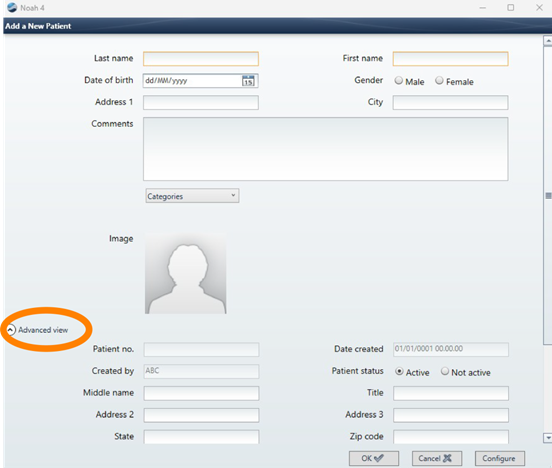
By default, all demographic fields you make active in Noah will also be added in the Advanced View section of the Add/Edit Patient dialogs. You can use the Add/Edit Patient Fields tab to move and reorder these fields.
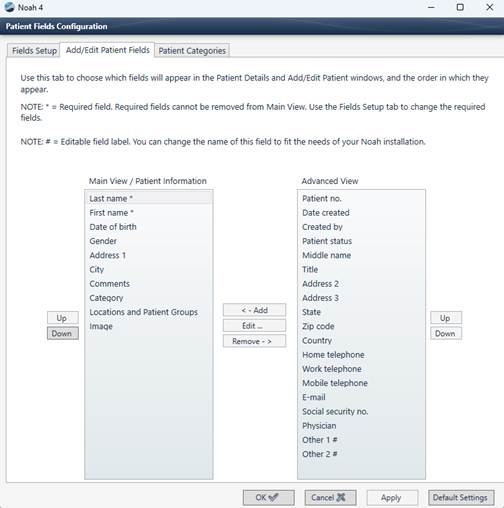
To move a field from the Advanced View section to the Main View, simply select the entry under Advanced View and click on the Add button. To change the order in which the fields are displayed, use the Up/Down buttons.
You can also use this tab to edit the names of the definable fields, Other 1 and Other 2 .
For more information, visit the Noah Knowledgebase.

 HIMSA
HIMSA